

How To Clear Search History On Safari Mac
Learn how to clear the browsing history, website cookies, and storage cache files in the Safari on the macOS. Data will be deleted from the local storage.
Everything you do on the safari browser is recorded in form of history, browser cookies, and cache files. These are recorded and stored as part of the browser system. However, over a period of time, the browser cookies and cache might grow and take up a lot of space. Hence, clearing it occasionally should be considered as part of the performance booster.
While history occupies very little space, but it will keep the record of all the websites that we have visited from the last history delete. If you're using any public computer it is recommended to delete the history, clear the cache, and cookies from the browser.
A while back, my mother was facing the same problem with her laptop. Even after having ample storage space, the speed of the laptop was remarkably slow and lagged like anything. It disturbed my mother a lot and finally, she asked for my help! Seeing her struggle for so long, I decided to fix it for her.
Related: How to Clear History, Cookies, and Cache from Safari iOS/iPadOS?
The only way to help her was to teach her how to clear cookies and cache on safari mac. You can also use the private browsing window in safari macOS to keep the things off record.
How to Clear History in Safari Computer?
There are situations when you may have to use the computer of someone else in times of need. likewise, you may also use a public computer in times of emergency. In such conditions, it is necessary to know how to clear history on safari mac.
Here are the steps to clear the browsing history in safari macOS computer:
- Launch the Safari browser app on a mac computer.
- SelectHistory from the menubar options.
- Choose Clear History… option under the History menu.
- This will open the Clear History dialog window.
- From drop-down select the date range that you want to delete.
- Hit on the Clear History command button to remove history from safari.
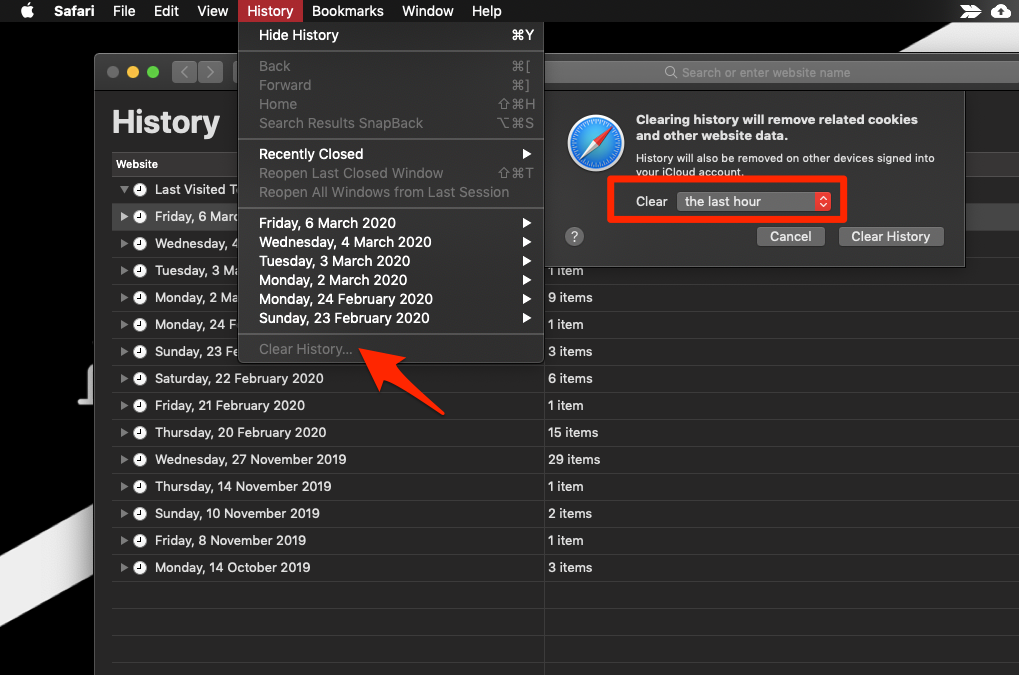
This will clear all the browsing history from the apple safari browser on mac desktop or laptop. You can choose the date range like last hour, today, today and yesterday, and all the time.
Clearing history will also delete the related information like cookies, cache data, and other website storage from a computer. You can alternatively delete cookies and file cache from safari mac using the below method.
How to Clear Cookies and Cache in Safari Mac?
Cookies and cache are basically leftover data from a website. These are used to load the websites faster when we visit them again. However, it may take up quite a good amount of storage space if not cleared regularly and hamper your computer's performance.
Here are the steps to clear cookies and cache from the safari mac computer:
- Launch the Safari Mac app.
- SelectSafari from the menubar options.
- ChoosePreferences… option under the Safari menu.
- Switch to the Privacy tab within the Preferences popup window.
- Click and open the Manage Website Data… button.
- Select the Website, and hit on Remove command button
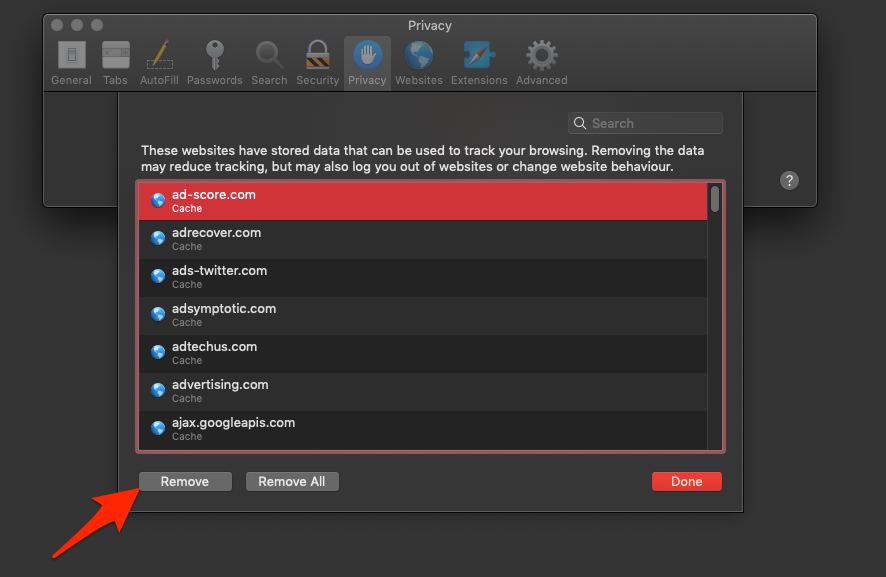
This will clear the browser cookies and cache storage for the selected website from the safari browser on macOS.
If you want to delete the cache and cookies for all websites to date, then hit on Remove All command button at step #6.
Bottom Line: Clear Cache Safari
Cache, cookies, and browsing history are generally used to record data of the websites we visit daily. After a significant amount of time, they may take up the storage space to hinder the computer's performance.
In such a case, it is always advised to clear these sets of data to ensure the smooth functioning of your computer. I was able to help my mother with the same method by teaching her how to clear cookies on safari mac. As soon as the cache and cookies were cleared, her laptop started functioning relatively well!
Similarly, you can also clear cookies, cache, and history from Safari iPhone or iPad. If your account is synced with iCloud, it will also remove the historical records from the computer browser.
I hope that this article helps you as much as it helped me and my mother in the past. Let us know how it has helped in your situation.
Lastly, here are the recommended web browsers for your computer and mobile phone that you should give a try.
| Windows | MacOS | iOS | Android | Linux |
|---|---|---|---|---|
| Chrome Windows | Chrome Mac | Chrome iOS | Chrome Android | Firefox Linux |
| Firefox Windows | Safari Mac | Safari iOS | Edge Android | Chrome Linux |
| Edge Windows | Firefox Mac | Edge iOS | Samsung Internet | Edge Linux |
If you've any thoughts on How to Clear History, Cookies and Cache in Safari Mac?, then feel free to drop in below comment box. If you find this article helpful, please consider sharing it with your network.
Also, please subscribe to our BrowserHow YouTube channel for helpful videos tutorials.
Disclosure: This page may contain affiliate links, which means we may receive compensation for your purchases using our links; of course at no extra cost to you (indeed, you may get special discounts). This will support our effort to create more useful content, and keep it open and free forever.
How To Clear Search History On Safari Mac
Source: https://browserhow.com/how-to-clear-history-cookies-and-cache-in-safari-mac/
Posted by: boylesmaland.blogspot.com
0 Response to "How To Clear Search History On Safari Mac"
Post a Comment